MANUAL / SCRIPT
Palf FontMixer
Installation and operation of FontMixer Pro and Lite for assigning fonts by character set.
Installation
- 01
Copy Palf_FontMixer_1.1.1.jsxbin to the After Effects Scripts/ScriptUI Panels folder.
- 02
Restart After Effects, then open Palf FontMixer from the Window menu.
- Windows
- C:\Program Files\Adobe\Adobe After Effects [version]\Support Files\Scripts\ScriptUI Panels
- macOS
- /Applications/Adobe After Effects [version]/Scripts/ScriptUI Panels
Installation
- 01
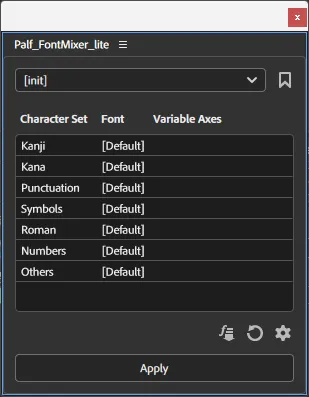
Copy Palf_FontMixer_lite_1.1.1.jsxbin to the After Effects Scripts/ScriptUI Panels folder.
- 02
Restart After Effects, then open Palf FontMixer Lite from the Window menu.
- Windows
- C:\Program Files\Adobe\Adobe After Effects [version]\Support Files\Scripts\ScriptUI Panels
- macOS
- /Applications/Adobe After Effects [version]/Scripts/ScriptUI Panels
Pro licence authentication
On the first Pro launch, enter the licence key shown in the panel. For a BOOTH purchase, use the order number; for Lemon Squeezy, use the licence key issued at checkout. Activation can take a short time to become available.
The Lite edition does not require licence authentication.
FontMixer Pro panel
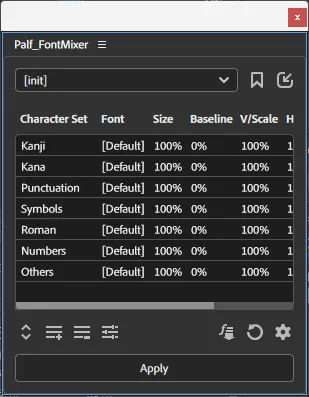
- Preset
- Selects a saved font configuration.
- Character-set list
- Stores character sets, fonts, size and baseline values. Sets are evaluated from top to bottom; double-click one to edit it.
- Get font
- Assigns the selected text layer font to the selected character sets.
- Apply
- Applies the current configuration to the selected text layers.
Character-set details
Set the name, relative size, baseline, vertical and horizontal scale, and matching characters. Characters may be entered directly, as Unicode such as \u0041, or as a range such as A-Z.
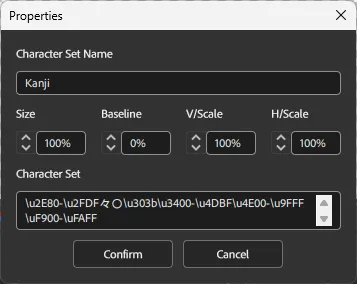
Character sets are applied from top to bottom. Move the preferred set upwards when ranges overlap.
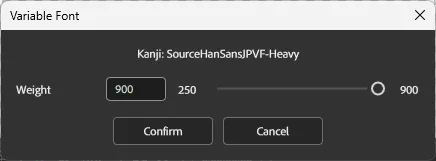
Variable fonts
Selecting a character set that uses a variable font reveals the variable-font button. Adjust every available axis by input or slider.
Settings
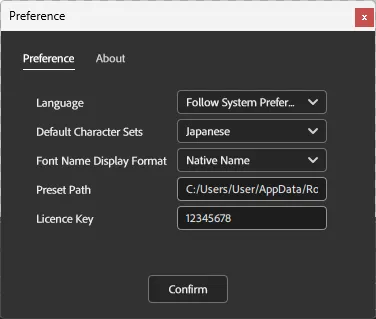
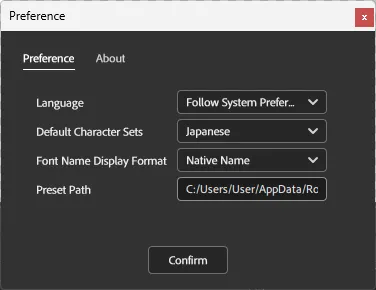
- Preset path
- Selects the folder used to save and load presets.
- Language
- Choose Japanese, English, Chinese, Korean, or follow the system setting.
- Font-name format
- Chooses the native, English or PostScript name shown in the panel.
Basic workflow
- 01
Set the desired font on a text layer.
- 02
Select the target character sets and run Get Font.
- 03
Adjust size, baseline, matching ranges and order as required.
- 04
Select the target text layers and run Apply.
Lite edition
Lite requires no licence and provides per-character-set fonts, preset saving and application to selected layers. Pro-only controls include size, baseline and scale adjustments, custom character sets, composite-font import and variable axes.